TEFtalk training guide
TEFtalk training can be completed in half an hour. However, it's OK if it takes longer.
Preamble
TEFtalk was 2 years in development, and the initial release was made late in 2020. It's rough around the edges, but works in 99% of cases. When it doesn't, it is typically operator error on the part of the student. Version 2 is due to be released mid-2021 when many of the usability issues will be resolved.
Training set up
The trainer should be logged into their own training account or Matthew Training (password = welcome).
The trainee should book in a lesson with the training student account. There needs to be a lesson in the system to be able to practice the lesson record stuff. You may need to talk the trainee through booking in a lesson with a student. The lesson needs to be booked in at a time in the near future.
The trainee should be using Chrome, Edge or any other browser that uses the Chromium engine. Everything will work (including screensharing). Firefox is OK. Safari is OK. However, you cannot share your screen currently. Internet Explorer will not work.
Points to note
- Tab cannot be 'stale' (refresh before sending chat messages or calling). Keep it fresh!
- Students cannot call teachers. Only teachers can call students. This is by design. Teachers have the keys to the classroom.
- TEFtalk will not load on the schedule page.
- The 'mother tab' (the tab you call from) is where you give permissions to the browser. It cannot be closed. You cannot navigate away from it. When you share screens, the dialogue asking what you want to share will happen in the mother tab.
- Initial connections take time. It's not a native app. It is a web app. It will not respond instantly.
- Make sure you have a back up solution (Meet Now etc.) and don't spend 25 minutes trying to get it to work. Avoid time wasting and frustration. Tech support can follow up.
- Phones and tablets don't work right now.
- Student help is here https://theenglishfarm.com/help/teftalk and in Japanese https://theenglishfarm.com/ja/help/teftalk
Training flow
Starting the call—get the trainee to share screens over Skype and talk them through it (you may have to start at booking the training lesson):
- Trainee sends message to trainer account.
- Trainer responds.
- Trainee calls trainer.
- Trainee gives permissions to the browser.
Point out that permissions have to be given to the browser. Reiterate that the tab the call is launched from is the 'mother tab'—can't close it; can't navigate away or you will kill the call. Note that the pop up tells you if your browser is supported and your mic and camera are working.
Stop sharing and switch to TEFtalk. Get the trainee to call. Remind them again here that students cannot call teachers. If Skype is still grabbing the camera, it might take a couple of goes, but usually works fine first time (issues only twice in about a hundred different training sessions).
In call:
- Talk through the chat: emojis, file attachments (images or PDFs up to 150M, no pasting in of images yet), edit, delete.
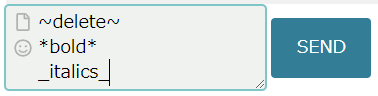
- Show how to style messages with ~ * and _ to get delete, bold and italics. Enter this into the chat and then send it "~delete~ *bold* _italics_" (without the quotes). At this point, it is probably useful to capture what you enter into the chat and send it to the teacher, as it can be difficult to explain/demo. Or you can send this pic:
- Talk through the buttons (settings, mute, refresh, screensharing—permissions in the 'mother tab' etc.).
- Explain how to load the lesson record (note that you have to call back if you choose the wrong one).
- Make sure that the call window is maximised.
- Go through each column of the form one by one.
- Left column is for words, phrases etc. It's the guts of the lesson. Get the trainee to enter something and hit the 'enter' key: "That goes to the student and in the background to the lesson record draft—efficient!" Make sure they know to hit enter. Draw attention to the different colour. LR stuff is white on green. Normal chat messages do not go to the LR.
- Middle column behaves the same—goes to the student & the draft. Get them to try it. It's for wrapping up the lesson or a section. Teachers should be aware that this is to reinforce what is being said. Finished a section in the book? Fill out the middle column and draw the student's attention to it. One or two minutes to go in class? Fill out the middle colum.
- Right column is for notes to self. None of that is seen by the student in the lesson. Aim to have every box filled out by the end of the class to save you reviewing notes or chat histories later. Also to make sure that the next teacher knows where to start if the student is doing back-to-back classes. Put in homework when it comes up. ("That's a good idea for homework. Let me make a note in your lesson record.")
- Explain that the contents of the fields should stand alone out of context ("We did p.22" is no good; "Used the past simple and past progressive to tell a story" is much better).
- Save draft periodically. Autosave is coming, but for now click it every time you remember to!
- Make sure you save before you end the call.
Hang up and switch back to Skype screen sharing.
- Go to My Page.
- Find the lesson event and click on the student name.
- Talk the trainee through the previous lesson on the right hand side of the profile. Point out "Placeholder value" and explain what it means. Show the trainee that their draft is already visible on the profile.
- Go through the recent lessons in the left hand column. Talk about the title of the lessons and which have good 'information scent' (a good summary of what is inside) and how you can get an idea of what the student has been doing recently.
- Open a sample LR and then get them to play the TEFbot audio on vocab etc so that they see it in action.
- Go back to My Page and find the draft record.
- Ask the trainee to complete the draft after the session. Fill in every field. Add picture and embed a video. Try an audio recording etc. Then "Save and email".
End!
Troubleshooting
- Refresh.
- Don't paste in whole definitions. Long entries break the LR.
- Get the student to refresh.
- Log out and in again.
- This trick for when the camera doesn't work.
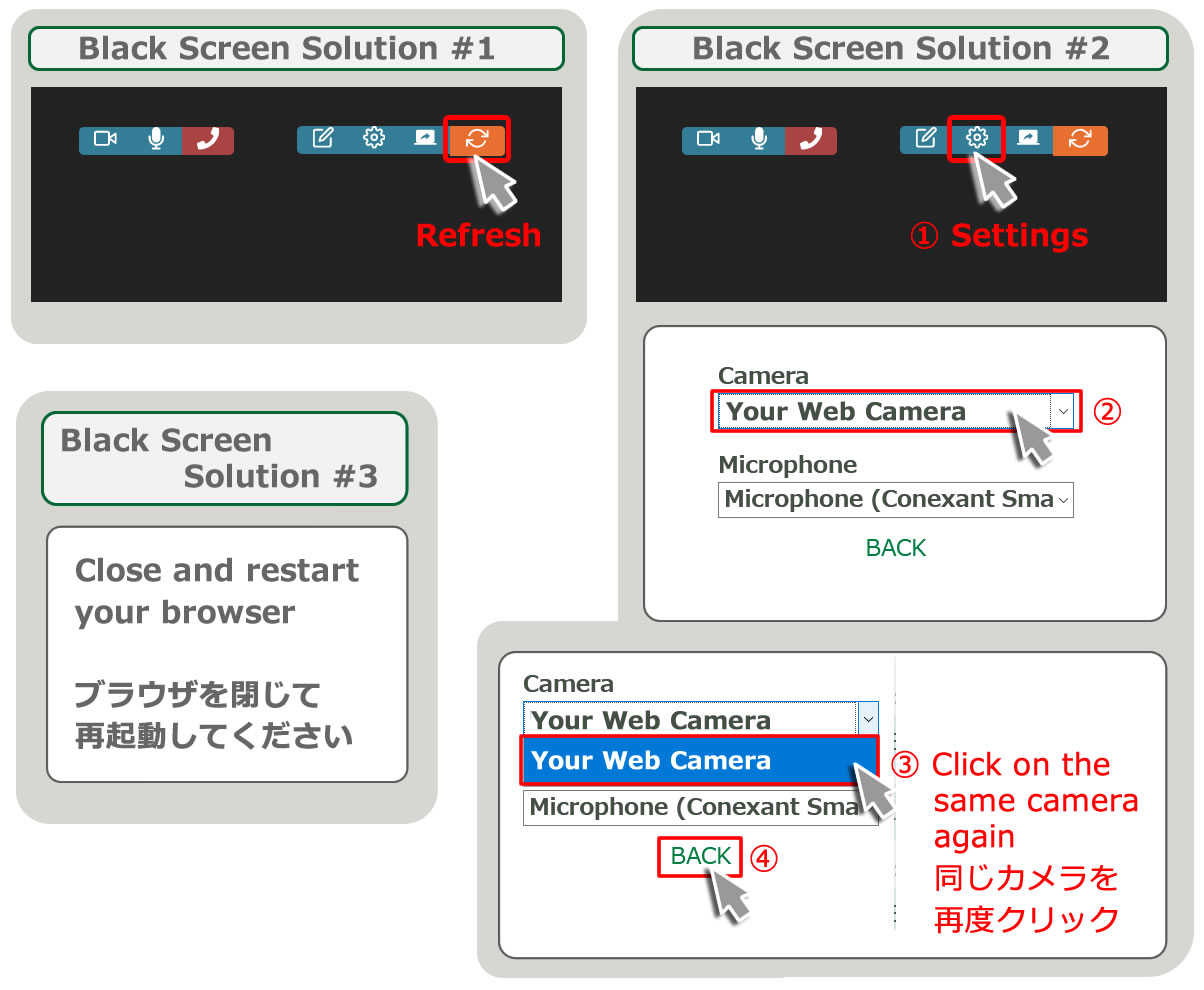
- Restart the browser.
- If there are issues, check for student experience: What browser are they on? Did they give permissions to camera and mic? Did they get an error message? Did they hear any sounds? Did they get the incoming call splash? Did you ask the student to reload? Was the student showing offline or online? Were they on their company network or somewhere else (home etc.)? Were they on work hardware or their own? On a phone?
- If you have tech trouble, make sure you give details on the LR in the tech trouble box. Then tech support will be emailed. If you would like tech support to follow up with the student, be sure to explicitly request that. Otherwise, it may just be treated as a record of what happened.