Translation job queue: how to use it
The translation job queue page is used to check the translation status of a page (what needs to be translated, what has already been translated, etc.).
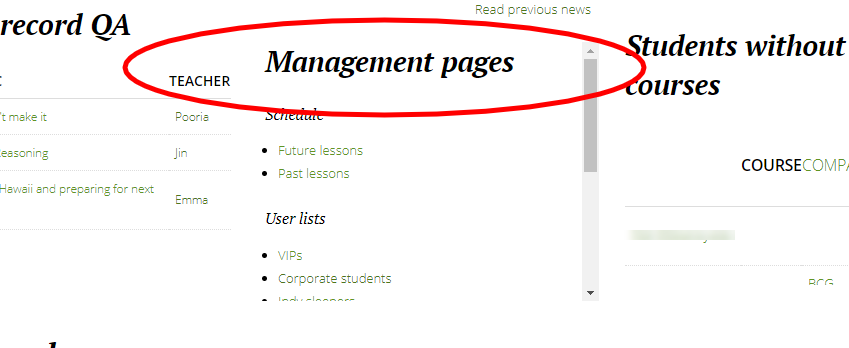
Step 1: Go to MY PAGE → Management pages.
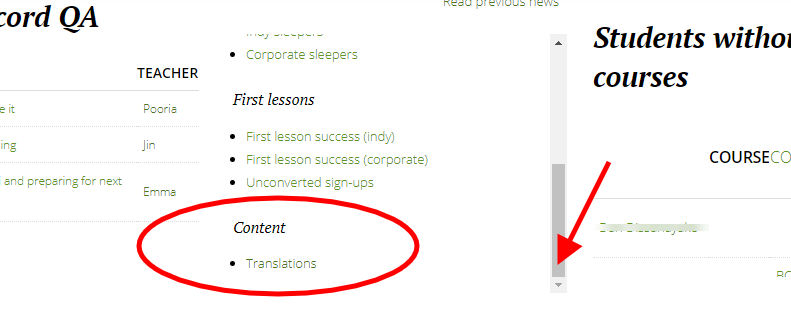
Step 2: Scroll down to the bottom. You'll see Content → Translations. Click Translations.
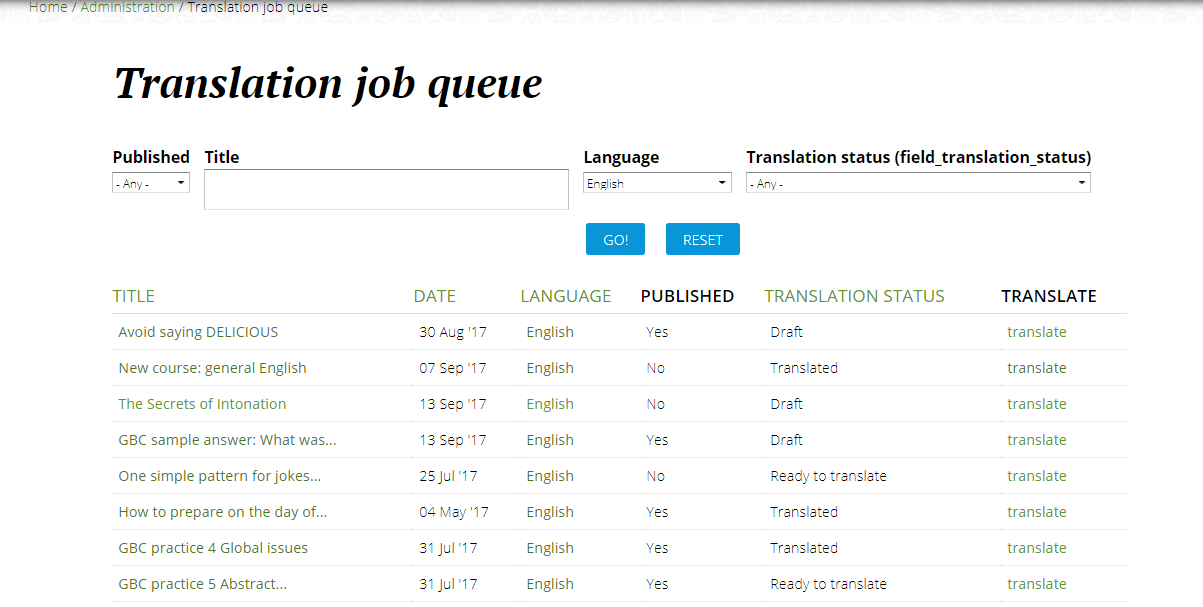
You'll get to this page:
The different functions:
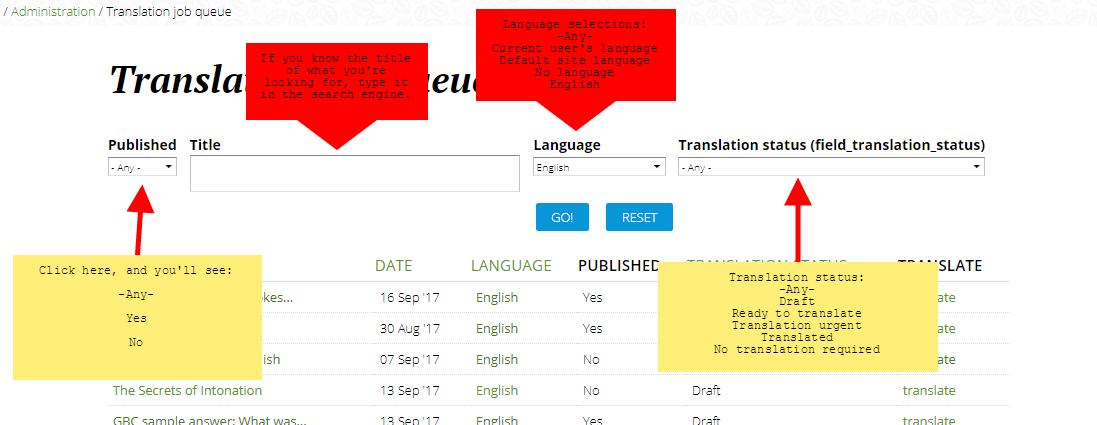
Step 3: Go to Published, and click "Yes". Then, go to Translation status, and click "Ready to translate". Hit GO! You'll get a queue of published work that needs to get translated. You can also click "Translation urgent" instead of "Ready to translate" to see if there is anything urgent that needs to get translated, but this will probably be a rare case.
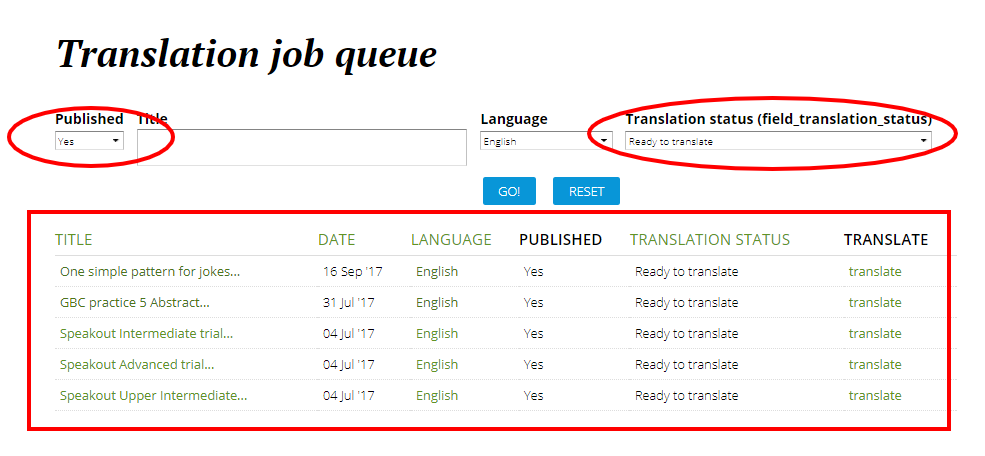
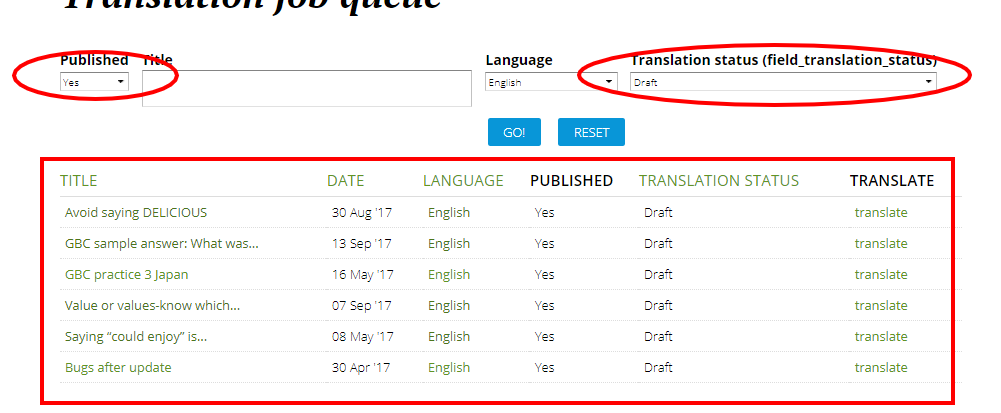
Sometimes you may need to check "Yes" + "Draft", because content has not been updated to the correct status (oops!). If you see that something is up on the site but is set on "Draft", please ask someone on the Copy Edit staff (Matthew, Jeremy, or Yumi) to make sure it's ready to be translated.
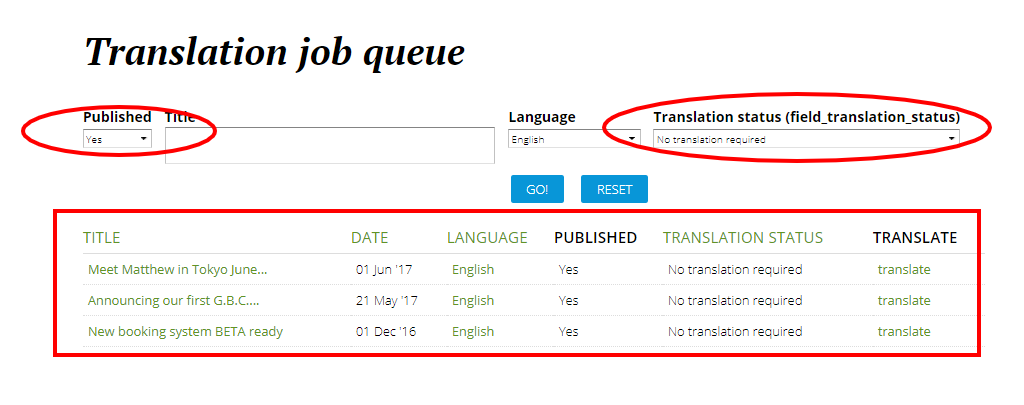
Some things will require no translation (e.g. Teacher help pages). "Yes" + "No translation required".
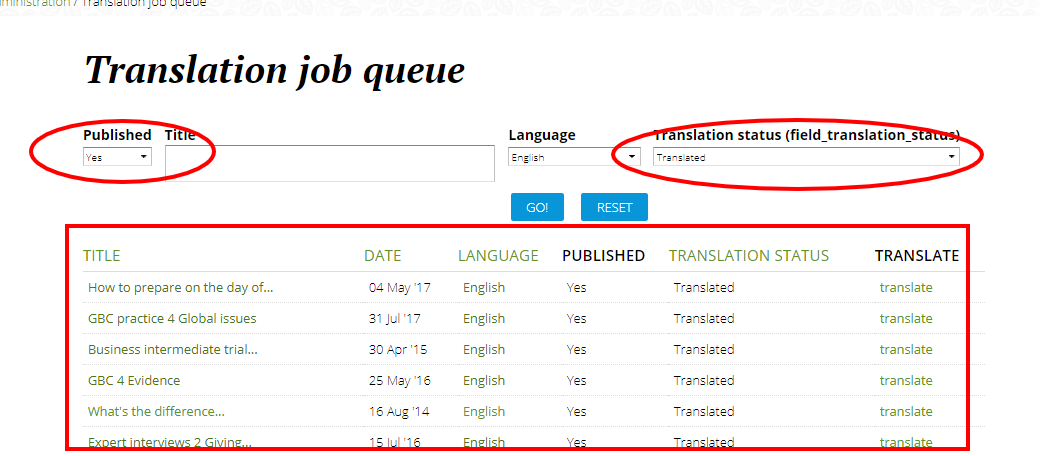
We also have content that has been translated already, but may need to be redone. Please look for them here ("Yes" + "Translated"):
And that's the Translation job queue tour!