Cloud9: in-browser front-end dev environment
If you don't know what this is, don't worry about it. If you are curious, it is how we work on the look and feel of the site and update it collaboratively.
--
Instructions for access and use (UAT/prod):
- Login to AWS Console https://318416604790.signin.aws.amazon.com/console as an IAM user NOT the root user.
- In the top search type in "Cloud9" and click the link from the menu
- On the left hand side of of the page click the "hamburger"/menu
- Click on "Shared with you"
- You should see one option called "HTMLDevEnvrionment" - click on "Open IDE"
- That will open a browser based development environment. NOTE: This runs on a server that sleeps after 30 mins of non-use. So might take a minute or two to load up if no one has used it for the last 30 mins
- You should see a Directory listing on the left hand side, file editor on the right, and a SSH window on the bottom.
- Open the "drupal7.theenglishfam.com" folder and edit files as needed.
- In the SSH window "cd drupal7.theenglishfarm.com"
- You can now do "git fetch/add/commit/push/diff" etc as normal I have pre-set this up so that you are on a branch called "CSSAdminEdits"
--
The code you edit with above instructions you can view live here:https://css-uat.tefaws.com
That is using the UAT database. CSS cache is disabled so your edits should be instant with a refresh of the page in the browser.
If you need this, you will have access and credentials.
To compile less files
In the command prompt, cd into the tef_2018 directory:
cd drupal7.theenglishfarm.com/sites/all/themes/tef_2018
From there run:
lessc ./less/style.less ./css/style.css
That will compile the contents of style.less and all it's included files and create style.css in the expected location.
Troubleshooting
From time to time, the test site will not update to reflect changes to CSS. Check the following:
- Ensure that in dev tools in your browser, caching is off:
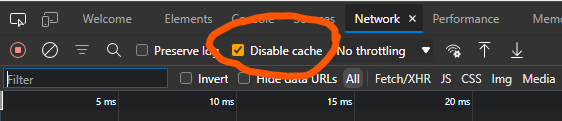
- Make sure caching of css files is not turned on here:
https://css-uat.tefaws.com/admin/config/development/performance
"Aggregate and compress CSS" needs to be turned off on the same page. - Doublecheck that https://css-uat.tefaws.com/ is using the UAT DB. If the CDN iss turned on here:
https://css-uat.tefaws.com/admin/config/development/cdn then turn it off and clear the site cache.
space = scroll down
q = quit
---
Access to dev/test
- Login to AWS Login Url: https://tef-dev.signin.aws.amazon.com/console User: MatthewR Password: in Slack
- Go to Cloud9 from the Services menu
- Click "Open IDE" for the environment: matthewr_web_inkstone